At the bottom of the scoreboard on the Live page, a small table shows each team's points in each period, with the total in the F column. StatsCastr fills it in from the plays you log. You can type your own numbers over it, but read what that does first: in most cases, fixing the plays is the better choice.
Short version
On the Live page, tap Edit next to Score by Quarter (or Half, Set, Period or Inning), type the numbers and tap Save. This only changes that table on the Live page. To change the real score, fix the plays instead.
What the table shows
The heading uses your sport's period name: Score by Quarter, Score by Half, Score by Period, Score by Set or Score by Inning. There's a column for each regulation period, an extra column for each overtime period once you reach it, and F for the total. The current period is highlighted.
The numbers come from your plays. Log, undo or edit a scoring play and the table updates with it.
Tennis has no Edit button: its table shows games won in each set, worked out from the points.
Type over the table
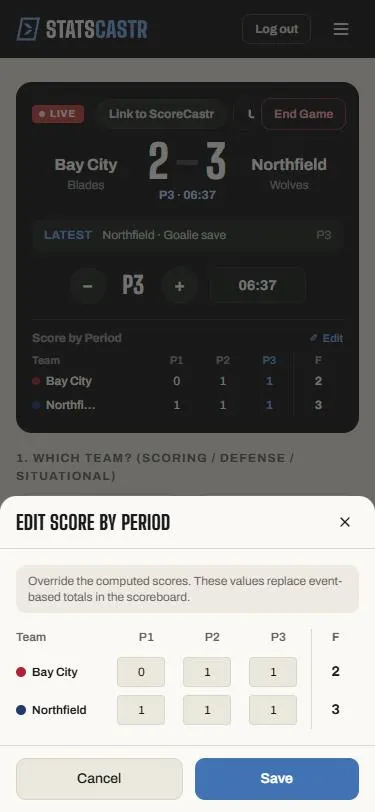
- On the Live page, tap Edit at the right of the Score by heading.
- Edit Score by Quarter (or your sport's period) opens, with the note Override the computed scores. These values replace event-based totals in the scoreboard.
- Type each team's points for each period. The F column adds them up as you type.
- Tap Save. Or tap Cancel to close without saving.
Once you've saved, the button reads Edit (manual).
What an override changes, and what it doesn't
Despite the note in the form, an override only changes the score-by-period table on the Live page. It does not change:
- the big score at the top of the Live page
- the score or the score-by-period table on the fan page
- the game's box score page, or the PDF and CSV downloads
- standings, stat leaders, or what ScoreCastr shows
So the Live page table can end up showing a different total from the real score. If the real score is wrong, a play is wrong: fix the play and everything updates together. See Edit or delete any play, during or after the game.
Overrides are permanent
When you tap Save, StatsCastr stores your numbers for every period shown in the form, not just the ones you changed. From then on:
- Scoring plays you log in those periods no longer change the table. Only overtime periods you reach later still fill in from plays.
- There's no button to go back to the automatic numbers. To keep the table right, tap Edit (manual) and update it yourself, or leave it alone and rely on the big score, the fan page and the box score, which always follow the plays.
When an override makes sense
- You're taking over a game partway through, and you want the Live page table to show the earlier periods' scores without logging every old play. Log Score Adjust plays, where your sport has them, to bring the real score in line too.
- You keep the scorebook by hand and want the Live page table to match it for reference.
For anything else, fix the plays.
If Save doesn't seem to work
If the form stays open after you tap Save, the save didn't go through. No message shows. Check your connection, reload the Live page and try again. If it still doesn't save, email info@eightyfivecreative.com with the game and the teams.
Checklist
- Real score fixed through the plays, not the override
- Override used only for the Live page table
- Table updated by hand after an override, if you rely on it
- Fan page and box score checked for the real score