Mistakes happen fast on the sideline. The Live page gives you two ways to take one back: Undo for the play you just logged, and the Play Log for anything older. Either way, the score and every total recalculate on their own.
Short version
Tap Undo on the scoreboard to remove the newest play straight away. For an older play, find it in the Play Log at the bottom of the Live page and tap Delete, then Delete again to confirm, or tap Edit to change it.
Undo the newest play
The Undo button sits at the top of the scoreboard, next to End Game. It names the play it will remove, for example Undo: Personal foul. With no plays logged yet it reads Undo Last and is greyed out.
- Check that the button names the play you want to remove.
- Tap Undo.
There's no confirmation: the play is removed and a message confirms it, for example Personal foul undone. The score, stats and fan page update.
Tap Undo again to remove the next newest play, and so on.
If the newest play hasn't synced yet (it shows Queued in the strip under the score), Undo removes it from your phone and it's never sent. The message reads, for example, Goal removed with The queued event will not be synced.
The play log
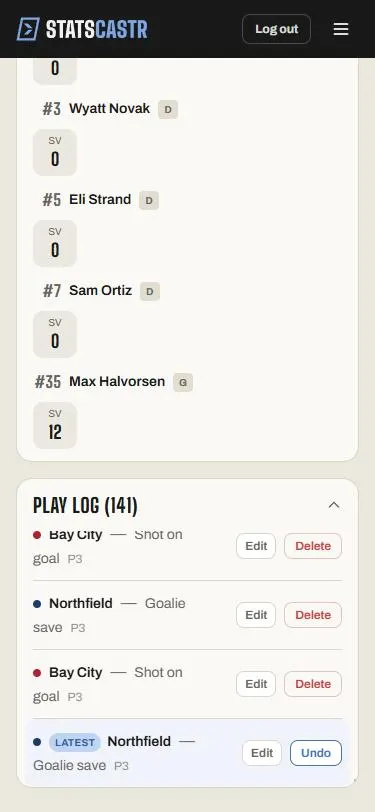
The Play Log is the last panel on the Live page. Its heading shows how many plays it holds, for example Play Log (42). It's open when the page loads; tap the heading to close or open it. The list scrolls inside the panel.
Plays are listed oldest first, so the newest is at the bottom. Each row shows:
- the team, with a dot in the team's color
- the play, plus any detail (for example Good, No Good, a turnover type or yards)
- the period
The newest saved play has a Latest tag. Plays that haven't reached StatsCastr yet show Queued or Failed at the start of the row (see below).
With no plays yet, the panel says No events yet. Use QB tracking or select a team above. in every sport. Just select a team and log your first play.
Delete an older play
- Find the play in the Play Log.
- Tap Delete on its row. On the newest row the button says Undo instead.
- Cancel and Delete appear on the row. Tap Delete to remove the play, or Cancel to keep it.
The score and every total recalculate without the play.
Edit a play
Tap Edit on any row to change the player, team, period, clock or other details instead of deleting it. That's often quicker than deleting and logging again, and the play keeps its place in the order. See Edit or delete any play, during or after the game.
In soccer, possession entries can't be edited, only deleted.
Plays that haven't synced
When your connection drops, new plays are saved on your phone and added to the bottom of the play log as Queued. They're sent when you're back online. If a play can't be sent, it shows Failed with a Retry button.
Queued and failed rows don't have Edit or Delete. The only way to remove one is Undo, and only while it's the newest thing you logged. See Keep scoring when the internet drops.
Things to know
- The period follows the newest play. If you've tapped + for a new period but haven't logged anything in it yet, undoing or deleting a play takes the Live page back to the period of the newest remaining play. Check the period label before you log again. See Change the period and set the clock.
- Undo needs a connection for plays that have already saved. If it can't reach StatsCastr you'll see Could not delete event, and the play stays.
- After the final, the Live page closes and new plays are locked. You can still delete or edit plays from the game's page. See Edit or delete any play, during or after the game.
Checklist
- Undo label checked before tapping it
- Older mistakes deleted or edited from the Play Log
- Period checked after an undo or delete
- Queued plays left to sync before ending the game