Every number in StatsCastr is built from the plays you log, so fixing a play fixes everything that depends on it: the score, team and player stats, standings and stat leaders. You can correct a play while the game is live, and after the final.
Short version
During the game, tap Edit on the play in the Live page's Play Log. After the final, open the game's page, open Play-by-Play and tap Edit. Change what's wrong and tap Save correction. To remove a play instead, tap Delete.
Where to find the play
During the game: on the Live page, scroll to the Play Log at the bottom and tap Edit on the play's row.
After the final: the Live page closes when a game ends, so corrections happen on the game's page.
- Open the game: tap it under Recent finals on the dashboard, or tap View on its card under Games.
- Scroll down and tap Play-by-Play to open it. It's closed when the page loads.
- Tap Edit on the play's row.
The game's page says Existing events can still be corrected; new events are locked. You can't add a play after the final, so if a play is missing, change a similar play instead, or adjust the score (see below).
Correct a play
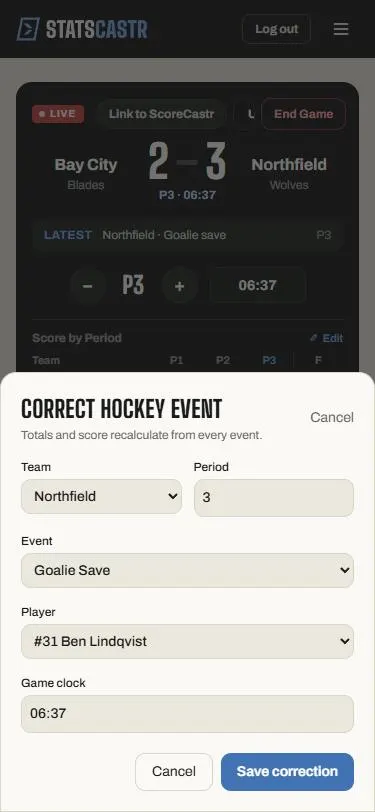
The editor opens with the title Correct and the sport, for example Correct basketball event, and the note Totals and score recalculate from every event.
- Change any of these:
- Team: the team the play belongs to.
- Period: the period number, for example 3 for the third quarter.
- Event: the kind of play, for example 2PT Made instead of 3PT Made.
- Player: who made the play, or Team event / no player.
- Game clock: the time, like 4:12. Volleyball, tennis, baseball and softball have no clock, and the editor says so.
- Tap Save correction. It reads Saving… while it works.
Some plays have extra fields, depending on the sport: First assist and Second assist in ice hockey, Assist in field hockey and lacrosse, New pitcher for a pitching change, Points (+ or -) for a score adjustment, Penalty minutes for ice hockey and lacrosse penalties, and Match format, Doubles partner and Game in set in tennis. In field hockey and lacrosse, an assist entered in the editor doesn't add to the assist totals yet: log assists with the Assist button instead.
If the correction changes the score or moves the play to the other team, StatsCastr asks first: This correction changes the team or score. Team totals, player totals, standings, and leaders will be recalculated. Continue? Tap OK to save.
Tap Cancel to close without changing anything.
Football and soccer
Football and soccer plays keep their kind of play. The editor shows it as Play, with the note To change the kind of play, delete it and log it again. You can still change everything else, and football and soccer plays have their own fields, such as Quarterback, Receiver, Yards, Sacked by, Turnover type, Converted and Scored in football, or Scorer, Assist, Shooter and Keeper in soccer.
Soccer possession entries can't be edited. Delete them if you need to.
Delete a play
- On the Live page: tap Delete on the row (it says Undo on the newest row), then Delete to confirm.
- On the game's page: tap Delete on the row in Play-by-Play, then confirm Delete this event? Its score and totals will be recalculated.
If a play is missing after the final
New plays are locked once the game is final. In basketball, ice hockey, field hockey, lacrosse, baseball and softball, you can fix the score by editing an existing Score Adjustment play and changing its Points (+ or -). If you know a play is missing, log it before you tap End Game: Score Adjust is on the Quick stats buttons in those sports. For football and soccer team or player totals, see Edit team and player totals.
If the correction won't save
The editor shows what's wrong in red. The messages you might see:
| Message | Fix |
|---|---|
| Period must be a whole number from 1 to N. | Enter a period in the range shown. |
| Clock must look like 12:34. | Football and soccer: type minutes, a colon and two digits. |
| Clock must be between 00:00 and MM:00 for this period. | Other sports: the time can't be longer than the period. |
| Adjustment must be a non-zero whole number from -20 to 20. | Use a whole number that isn't 0. Some sports allow -100 to 100. |
| Penalty minutes must be a whole number from 1 to 60. | Enter the minutes as a whole number. |
| Game must be a whole number from 1 to 13. | Tennis: enter the game number in the set. |
| Choose a different doubles partner. | Tennis: the partner can't be the same player. |
| … must be a different player. | The same player can't fill two roles, such as scorer and assist. |
| Choose the new pitcher. | Pick the pitcher for a pitching change. |
If the save reaches StatsCastr and is refused, a Correction failed message explains why. On the Live page, a delete that fails shows Could not delete event. Check your connection and try again.
Checklist
- Play found in the Play Log (live) or Play-by-Play (final)
- Team, period, event and player checked
- Score change confirmed when asked
- Score and box score checked after saving