The Live page is where you keep stats during a game. Every sport works the same way: tap the team, tap what happened, then tap the player. The score, team stats, player stats and the fan page all update from the plays you log.
Short version
Start the game, then tap Track Stats. For each play, tap the team card, tap a Quick stats button, then tap the player (or Skip). Scoring buttons put points on the board straight away.
Before the game
- Add your roster with numbers and positions. Player buttons show the number and name, and some stats only list players in a position (for example a soccer save lists goalkeepers, and a baseball pitching change lists pitchers). See Add, edit and remove players.
- Start the game. You can only score a game that's live. If you open the Live page of a scheduled or final game, StatsCastr sends you to the game's page instead. See Start a game and end it.
- Charge your phone and keep the screen on. The Live page works in any up-to-date browser.
Open the Live page
- On the Dashboard, find the game under live games and tap Track Stats. Or tap Games and tap Track Stats on the game's card.
- The Live page opens with the scoreboard at the top: the score (away, then home), the period and clock, Undo and End Game.
The page refreshes the score and stats every 5 seconds.
Log a play
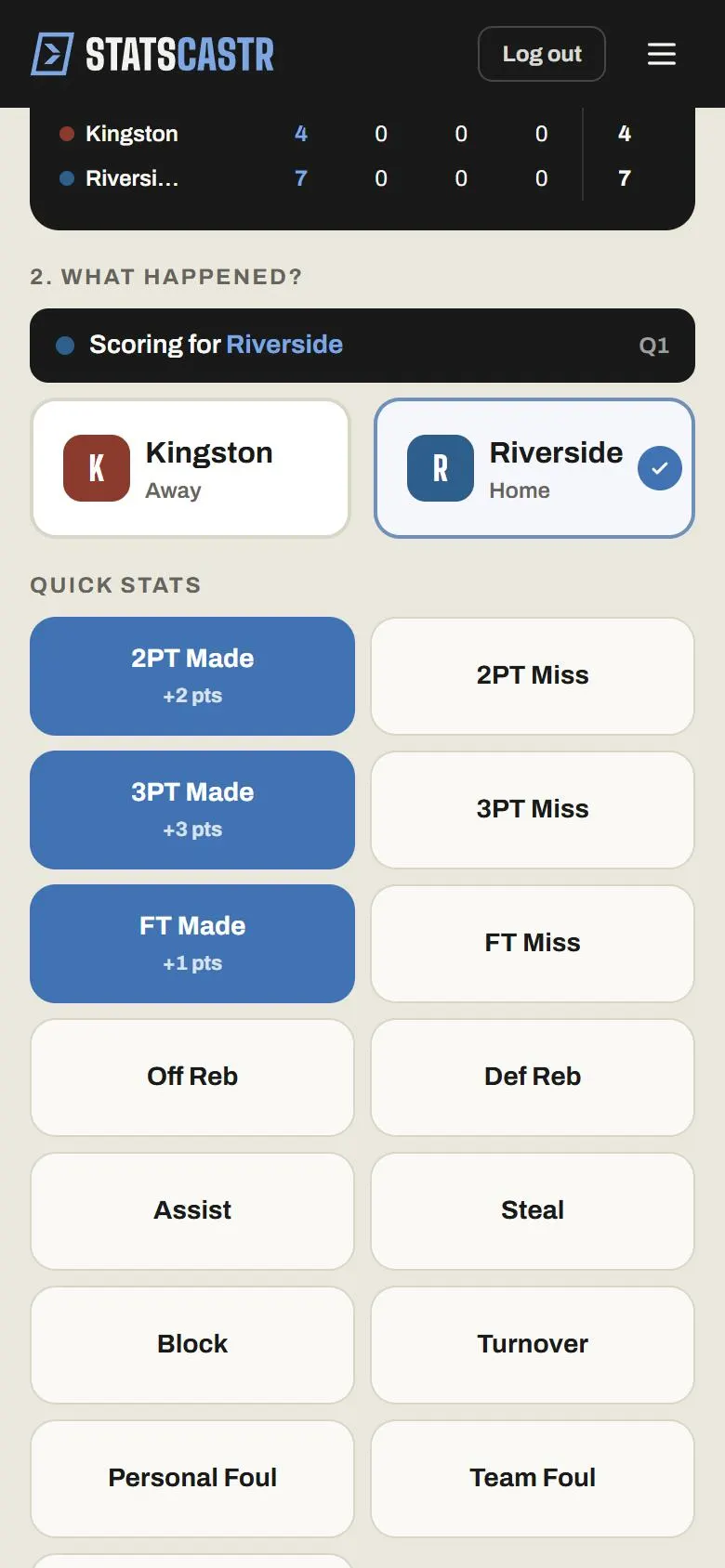
- Under 1. Which team? (scoring / defense / situational), tap the team that made the play: the Away or Home card.
- The heading changes to 2. What happened? and a bar shows Scoring for and the team name, with the current period.
- Tap a button under Quick stats. Buttons that score show the points, for example +2 pts.
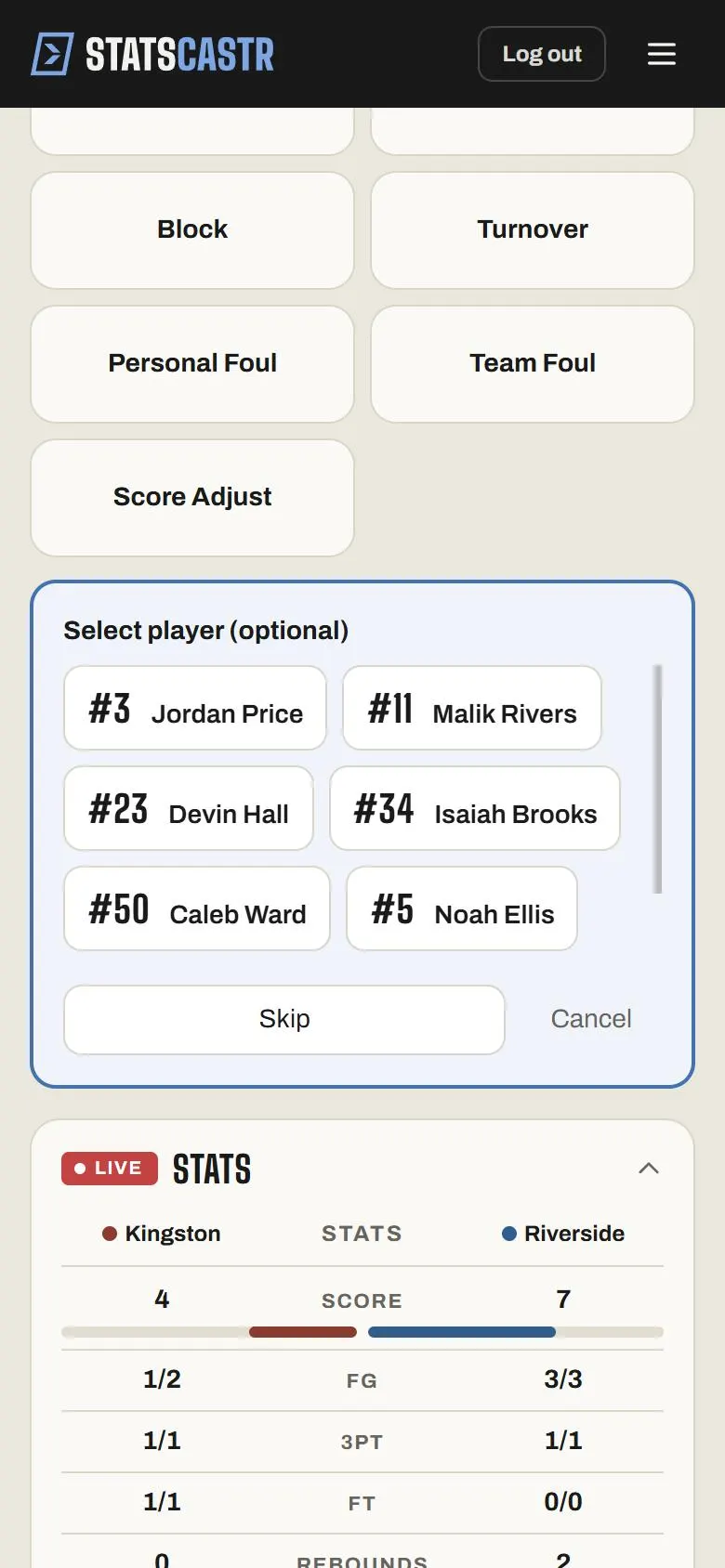
- If the stat needs more detail, a panel opens below the buttons. Tap the player, or the result, then you're done. Stats with no detail log straight away.
The team stays selected, so you can keep tapping stats for the same team. Tap the other card to switch.
Pick the team that made the play, even for defense: for a steal or a block, tap the defending team, then the stat, then the defender.
The detail panels
Depending on the sport and the stat, the panel asks for:
- A player. Tap the player's button. If the panel title says the player is optional, for example Select player (optional), you can tap Skip to log the play for the team only.
- A result. For example Good or No Good for a kick, or Converted or No Conversion for a third down.
- A type or an amount. For example the kind of turnover, penalty yards, or penalty minutes.
Tap Cancel to close the panel without logging anything.
What happens when you log
- Saving… shows next to Quick stats while the play is saved. The buttons are greyed out until it finishes, so a double tap can't log the play twice.
- The newest play shows in the Latest strip under the score, and at the bottom of the Play Log.
- The score, the LIVE Stats panel, the Player Stats panel and the fan page all update.
If you tap too fast you'll see Saving previous stat: wait a moment and tap again.
Sport by sport
The buttons and detail panels are different for each sport, and a few sports have extra controls:
- Football: quarterback and running back panels for play-by-play passing and rushing. See Keep football stats and Track quarterbacks and running backs play by play.
- Soccer: a Who kicks off 1H? prompt and a Possession bar. See Keep soccer stats, including possession.
- Volleyball and tennis: sets instead of a clock. See Keep volleyball stats with rally scoring and Score and keep stats for a tennis match.
- Baseball and softball: innings and a Pitching Change button. See Keep baseball stats, including pitchers and Keep softball stats.
- Also: basketball, ice hockey, field hockey and lacrosse.
Keep the period and clock current
Each play is saved with the period and the time in the clock box at the moment you log it. Use − and + to change the period, and type the game clock when you want it recorded. See Change the period and set the clock.
Fix a mistake
- Undo at the top of the scoreboard takes back the newest play. See Undo a play and use the play log.
- Edit on any row of the Play Log opens the play so you can change the player, team, period and more. See Edit or delete any play.
When the game ends
Tap End Game and confirm End the game and mark it Final?. The game's box score opens. After that, new plays are locked, but you can still correct existing ones from the game's page.
Checklist
- Roster added with numbers and positions
- Game started, then Track Stats opened
- Each play logged as team, then stat, then player
- Period and clock kept current
- Mistakes fixed with Undo or Edit as you go
- End Game tapped at the final