The roster is the list of players you tap when you log a stat. Each player has a number, a name and a position. Add your own team's roster before the first game; the opponent's roster is optional, since you can log their stats as team stats without it.
Short version
On Teams, tap Roster on the team's card. Tap + Add player, enter the #, Player name and position, and tap Add player. Use Edit and Remove on a player's row to change or delete them.
Open the roster
- Tap Teams in the header.
- On the team's card, tap Roster. You can also tap Manage roster on the team's page or on its edit form.
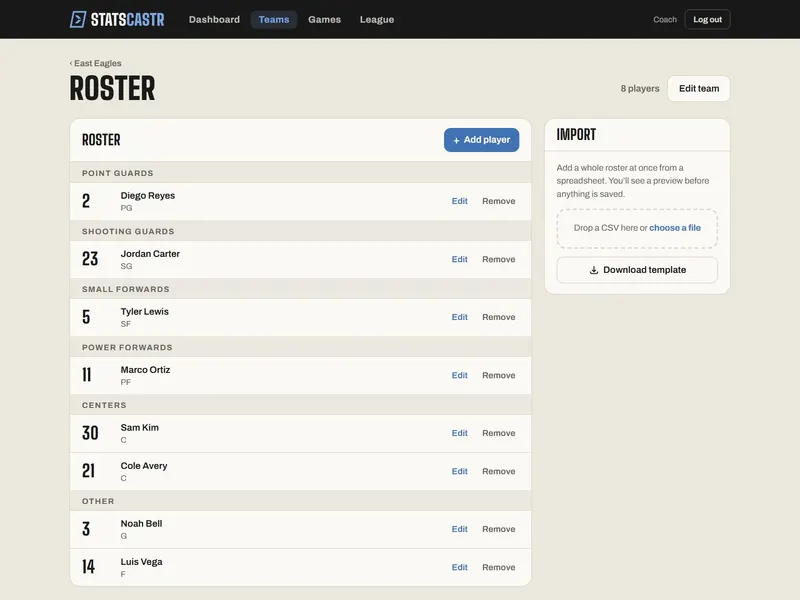
The page shows the team's name at the top, the Roster heading and the player count. Players are grouped by position, for example Point Guards and Centers in basketball.
Add a player
- Tap + Add player. A New player row opens at the top of the list.
- Fill in:
- #: the jersey number. It's free text, so "00" and "7A" work. Keep it to 10 characters or fewer.
- Player name: required. Add player stays grayed out until you type one.
- Position: choose from your sport's list. It starts on the sport's first position (QB in football, PG in basketball). See Roster positions for each sport.
- Tap Add player. The button reads Adding... while it saves, then the row closes and the player appears in their position group.
Tap + Add player again for the next one. Adding more than a few players? Import a roster from a CSV file is faster.
Positions matter in some sports
Some live-scoring panels only list players of certain positions: football's quarterback and receiver panels, the soccer keeper picker for saves, and baseball and softball pitching changes. Get these positions right before game day.
Edit a player
- Tap Edit on the player's row. The row turns into boxes for the number, name and position.
- Change what you need.
- Tap Save, or Cancel to leave it as it was.
The new details show everywhere the player appears, including box scores and play-by-play from games already played.
Don't save a player with an empty name: it's accepted, and you'll be left with a nameless player. Give every player a name, even just a first name and last initial.
Players under "Other"
Players whose position isn't in the team's sport show in a group called Other. This happens after a team's sport is changed, or with players added from elsewhere. To fix one, tap Edit, choose a position from the list (even if it already looks right, pick it again), and tap Save.
Remove a player
- Tap Remove on the player's row.
- Confirm Remove this player from the roster?.
Think before removing a player who has already played. Their logged plays stay in your games, but StatsCastr can no longer show who made them, so their stats can drop out of season totals and stat leaders, or show without a name. For a player who left mid-season, it's usually better to leave them on the roster.
If a change doesn't stick
Adding, editing and removing players don't show an error message if the save fails. If a player doesn't appear after Add player, or an edit or removal doesn't seem to take:
- Check your internet connection.
- Reload the page to see what was actually saved.
- Make the change again.
The usual causes are a dropped connection or a number longer than 10 characters.
Other messages you might see:
- No players yet. Import a CSV or add players one at a time.: the roster is empty.
- Roster couldn't load: "Your players are still safe. Check your connection and try again." Tap Try again.
- Roster unavailable: the team was deleted or belongs to another account. Tap Back to teams.
Opponent rosters
Adding the opponent's players works exactly the same way, on the opponent team's Roster page. With an opponent roster you get their player stats in the box score; without one you can still log their stats as team stats. Fans see both rosters on the game page, so check names and numbers.
Checklist
- Every player has a number, a name and a position
- Key positions right for your sport (QB, GK or P, for example)
- Nobody left in the Other group
- Players who've played kept on the roster, even if they've left
- Page reloaded to confirm any change that didn't seem to save