Every game needs two teams, so you add your own team and each opponent you play. A team holds its name, mascot, sport, colors and logo, plus its roster. You only set it up once, and it's used in every game and season after that.
Short version
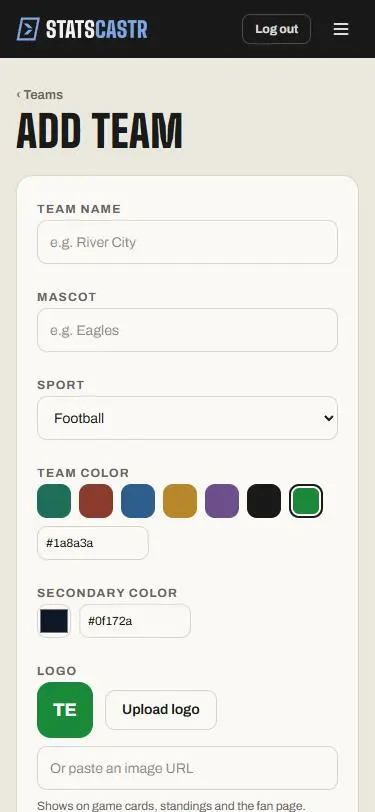
Tap Teams, then Add team. Enter the Team name and Mascot, choose the Sport, pick a Team color, add a logo if you have one, and tap Save team.
Add the team
- Tap Teams in the header (on a phone, it's in the three-line menu).
- Tap Add team. With no teams yet, the button sits under Build your roster.
- Fill in the form:
- Team name: the school or club, for example "River City".
- Mascot: for example "Eagles". This is required, so if a team doesn't have one, enter something short like the school's initials or "Varsity".
- Sport: Football, Soccer, Basketball, Volleyball, Hockey (ice hockey), Field Hockey, Lacrosse, Tennis, Baseball or Softball. It starts on Football, so check it.
- Pick a Team color (see below), and add a logo if you want one.
- Tap Save team. You go back to Teams, and the new team has its own card.
Repeat for each opponent. The opponent's sport must match yours: a new game only lists teams of the game's sport, and a season only takes teams of its league's sport.
Colors
- Team color is the main color. Tap one of the six swatches, tap + to pick any color, or type a hex code such as
#2E5E8Cin the box next to them. It colors the team's card and its initials badge, and marks the team on game pages. - Secondary color works the same way, with a color picker and a hex box.
Pick a color with good contrast against white text, since initials and some labels sit on top of it.
Add a logo
A logo is optional. Without one, StatsCastr shows the team's initials on its color. There are two ways to add one:
- Upload logo: choose an image from your phone or computer. The button reads Uploading... while it saves, and a preview appears next to it.
- Or paste an image URL: paste the web address of an image that's already online, such as the logo on your school's website. The address must start with
https://.
Remove clears the logo and brings back the initials.
Where the logo shows
Either way, the logo shows everywhere: your team cards, game pages, standings and the public fan page that parents and fans open from the Fan link. If a logo can't load, the fan page shows the team's initial instead. The season standings table on the fan page always shows initials, not logos.
To get an image URL from a website, press and hold the image (or right-click it) and choose Copy image address.
Square images look best, since logos are shown in a square tile and trimmed to fit.
Logo URLs
Use an image that will stay online. If the website hosting it removes or moves the image, the logo disappears from StatsCastr too, and the team's initials show instead.
The starting record boxes
The form has Starting record (W-L-T) boxes for Wins, Losses and Ties. They aren't used at the moment: a team's record is counted from its final games in StatsCastr, and whatever you type here isn't saved. Leave them at 0.
The record on each team card, labelled All-time, counts every final game the team has played in StatsCastr. Season records and standings count only that season's games. See How standings work.
If something goes wrong
- Logo upload failed: the image didn't save. Check your connection and try again, or paste an image URL instead.
- The browser won't save the form: a required field is empty (Team name or Mascot), or the logo address doesn't start with
https://. Your browser points to the field. - A red box with "ApiError: HTTP 400" and more text: the server refused the team. Check every field, especially the color hex codes (they should look like
#1F6E5A), and try again. If it keeps happening, copy the message and contact us.
Next steps
- Add the players: on the team's card, tap Roster. See Add, edit and remove players.
- Add the team to a season so its games count in the standings. See Create a season and add teams.
Checklist
- Team name and Mascot entered
- Sport set (it starts on Football)
- Team color picked
- Logo uploaded or pasted, if you have one
- Every opponent added the same way