Setting up takes about fifteen minutes, and you only do most of it once. After that, every game day is: open the game, start it, and tap. This guide walks through the whole thing in order, with links to the detailed guide for each step.
Short version
League → create a league and a season. Teams → add both teams and their players, then add the teams to the season. Games → + New Game, then Start Game and Track Stats at tip-off. Share the Fan link, tap End Game at the final whistle, and download the box score.
Before you start
You'll need a StatsCastr account (Create your StatsCastr account) and, ideally, your roster: names, numbers and positions. A spreadsheet is fine, since you can import it.
Your dashboard's Get your team ready to score card tracks the four setup steps below and ticks each one off as you go.
1. Create a league and a season
A league holds your teams' seasons, standings and stat leaders. It also sets the rules your games use.
- Tap League in the header, then + Create league.
- Enter a League name, choose the Sport, and pick a ruleset if your sport has one (for example high school or college basketball).
- Tap Create league.
- Under All seasons, tap + New season, give it a Name such as "Spring 2027", set the Status to Upcoming or Active (completed seasons can't take new games), add the dates, and tap Create season.
Only playing a one-off game? You can skip the league. Games without a season are scrimmages: they keep full stats but don't count in standings. See Create a league.
2. Add the teams
You need two teams for a game: yours and the opponent.
- Tap Teams, then Add team.
- Enter the Team name and Mascot, choose the same Sport as your league, and pick the Team color. A logo is optional.
- Tap Save team. Repeat for the opponent.
- Back on League, under Teams in season, tap + Add team and tap each team to add it to the season.
See Add a team.
3. Add players
- On Teams, tap Roster on your team's card.
- Tap + Add player, enter the number (#), Player name and position, and tap Add player. Or import the whole roster from a CSV file in the Import card.
The opponent's roster is optional. Without it, you can still log their team stats; you just won't have their player stats. See Add, edit and remove players and Import a roster from a CSV file.
4. Schedule the game
- Tap Games, then + New Game.
- Choose the Sport, the Away team and the Home team.
- Under Counts toward, tap your season. The form starts on Scrimmage, so a game that should count in the standings needs the season picked here; it can't be changed later.
- Set the Game date and Location, and tap Create game.
See Schedule a game.
5. Score it live
At game time, find the game under Games (or Up next on the dashboard).
- Tap Start Game, then Track Stats.
- For each play: tap the team, tap the stat, then tap the player. Scoring stats put points on the board.
- Use − and + to change the period, and type the game clock if your sport has one.
- Logged something wrong? Undo takes back the last play, and you can edit any play in the play log.
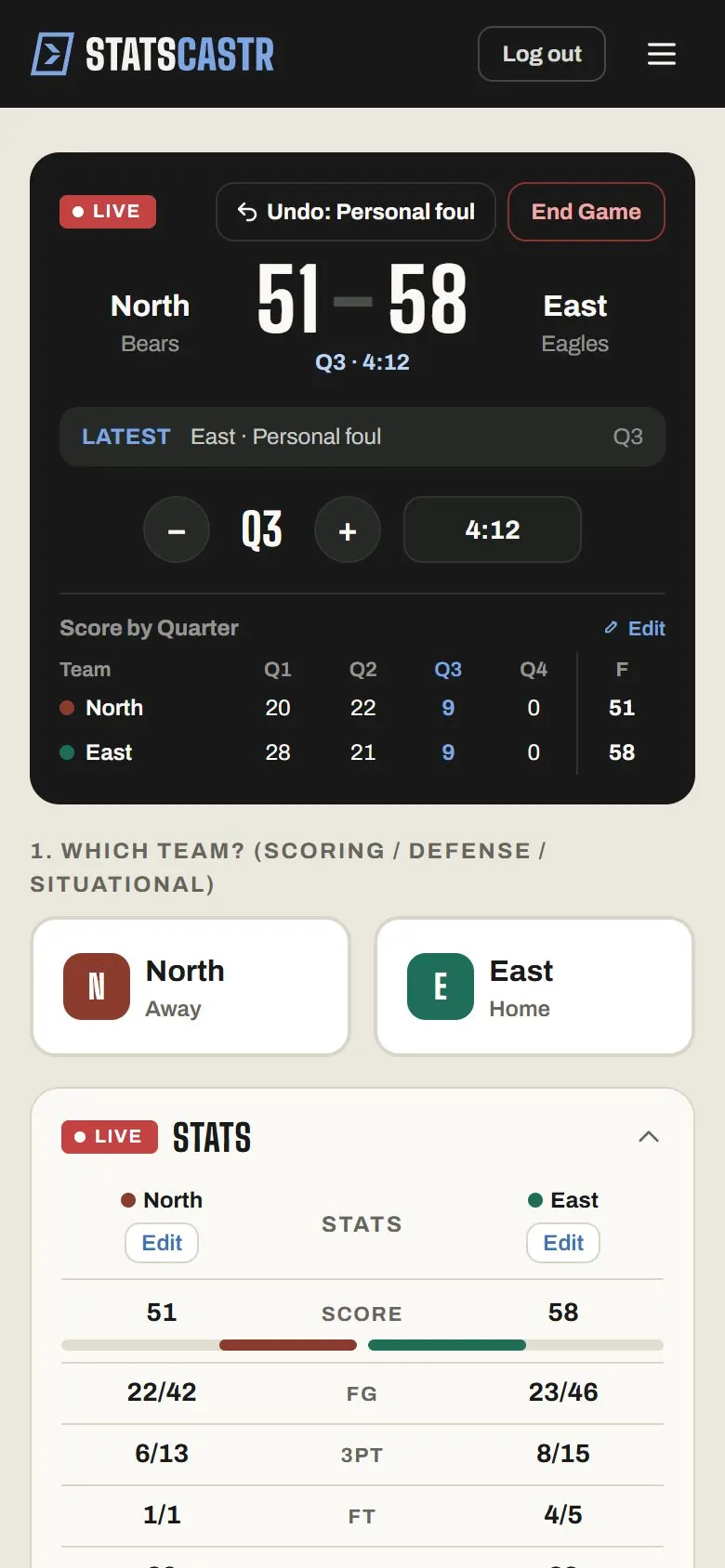
See Log stats live and the guide for your sport.
6. Share it with fans
Tap Fan link on the dashboard's live game card or on the game's page. The link is copied (or your phone's share menu opens). Paste it into the team chat or post it. Fans open it in any browser, with no app or account, and it refreshes every 15 seconds. See Share the live game link.
7. Finish the game
- On the Live page, tap End Game and confirm End the game and mark it Final?.
- The game's Box score page opens. Tap Export PDF for a printable box score, or Export CSV for a spreadsheet.
The game now counts in your season's standings and stat leaders. You can still fix any play after the final; the totals rebuild on their own. See Download a PDF or CSV box score.
Checklist
- League and season created, with the right sport and rules
- Both teams added and put in the season
- Your roster added, with numbers and positions
- Game scheduled in the season, or as a scrimmage
- Game started, then Track Stats opened at tip-off
- Fan link shared with parents and fans
- End Game tapped at the final, and the box score downloaded