The dashboard is the first thing you see when you sign in. On game day it's where you jump into live scoring; the rest of the week it shows what's coming up, how recent games finished, and where your teams stand.
Short version
Live games sit at the top with Track Stats and Fan link. Below them: Up next, Recent finals and your league's standings. The header takes you to Dashboard, Teams, Games, League and Help.
The header
The bar at the top of every page in the app:
- Dashboard, Teams, Games and League take you to each part of the app. Help opens these guides.
- Your first name (or your email) and the StatsCastr version, for example v1.1.1, show on the right. Tap your name to open Account, where you change your name, email or password. Mention the version if you contact support.
- Log out signs you out.
On a phone, the page links are in the menu: tap the three lines at the top right. The menu also has Account, and shows your name and the version.
The setup card
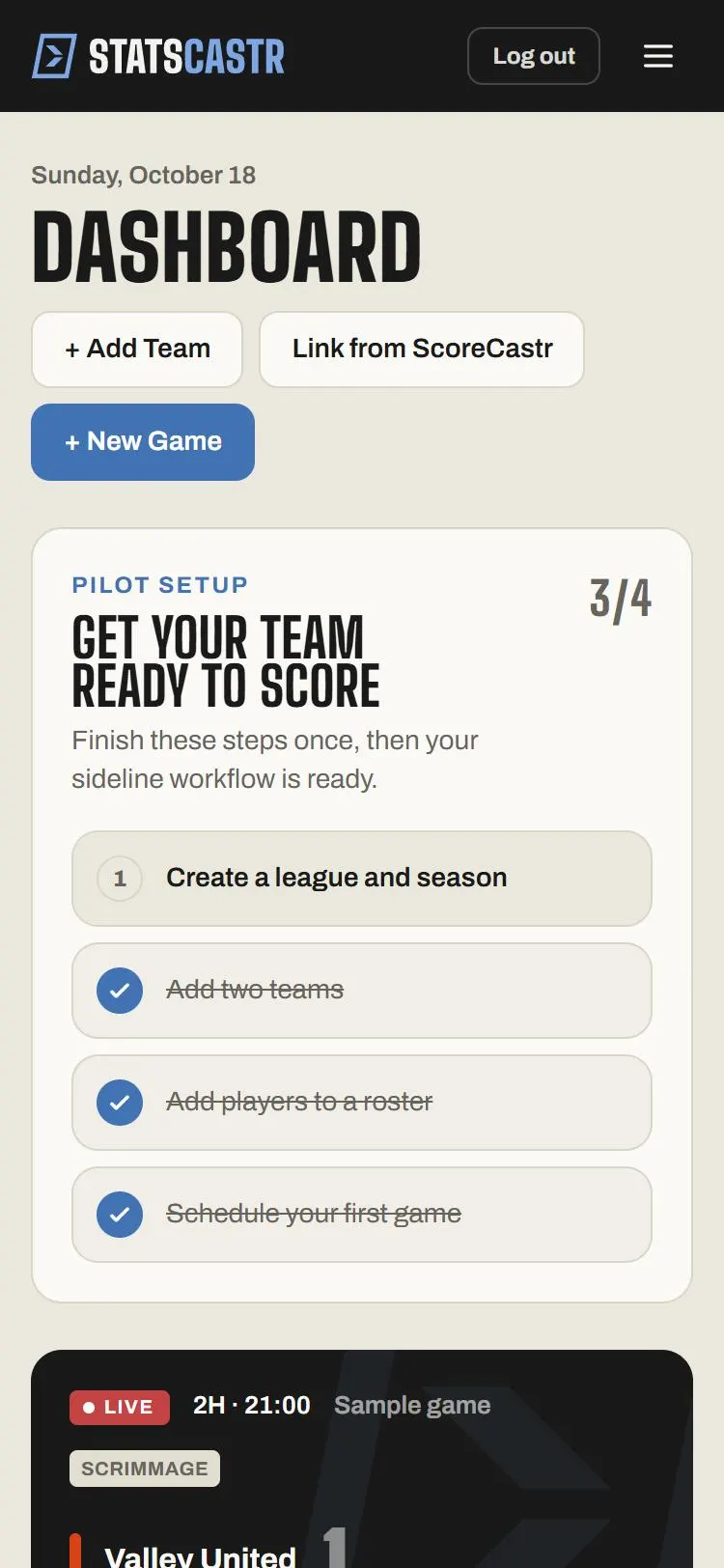
Until you've finished setting up, the dashboard opens with Get your team ready to score and a count, such as 2/4. Each step links to the right page and ticks itself off when it's done:
- Create a league and season
- Add two teams
- Add players to a roster
- Schedule your first game
The card disappears once all four are done. Your first game, start to finish covers each step.
The buttons at the top
Once you have at least one game, three buttons sit under the Dashboard heading:
- + Add Team opens a new team form.
- Link from ScoreCastr connects a game to a ScoreCastr broadcast. See Link a game to ScoreCastr.
- + New Game schedules a game.
Live games
Every game in progress gets a card at the top, with the Live badge, the score, the period and clock, and the location. Scrimmages are tagged Scrimmage, and a game linked to ScoreCastr shows its link status.
- Track Stats opens the game's live scoring screen.
- Fan link shares the public game page. On a phone it opens your share menu; elsewhere it copies the link and the button briefly reads Copied!.
With more than one game live, All live games → lists them all.
Up next and recent finals
- Up next lists up to five scheduled games: the ones you created most recently, so they aren't always in date order. Games with no date show TBD. All games → opens the full list.
- Recent finals shows your latest finished games with the final score. Box score opens a game's full stats, where you can download the PDF or CSV.
Standings
The standings card shows the top four teams in your league's current season, with each team's record (W-L) and streak (STK).
- Full standings → opens the season page with every team and the stat leaders.
- Manage league opens your league and seasons.
If you haven't set up a league yet, the card says No league set up, with Set up league →. With a league but no season, it says No seasons yet. See How standings work.
When there's nothing to show
- No games yet: you haven't scheduled a game. Use + Add Team, + New Game or Link from ScoreCastr to get started.
- Dashboard couldn't load: your connection dropped while the page was loading. Your data is safe; tap Try again.
Checklist
- Setup card finished, or following Your first game
- Live games opened with Track Stats at game time
- Fan link shared once the game is live
- Recent finals checked with Box score