Every StatsCastr game has a public page that parents, fans and players can open in any browser. It shows the live score, stats and play-by-play, and refreshes on its own. Sharing it takes one tap.
Short version
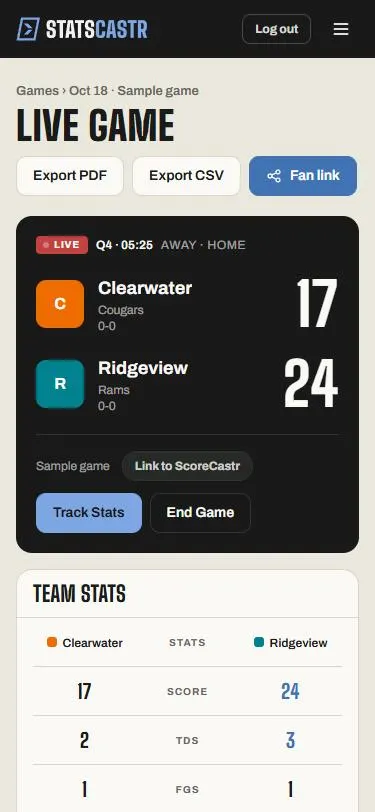
Once the game has started, tap Fan link on the dashboard's live game card or on the game's page. On a phone your share menu opens; on a computer the link is copied and the button reads Copied!. Paste it into the team chat.
Where to find the Fan link
The button is there once a game is live, and stays after the final:
- Dashboard: each live game card has Track Stats and Fan link.
- The game's page: open the game from Games. Fan link sits next to Export PDF and Export CSV.
- Games list: live and final game cards have Share, which does the same thing.
Scheduled games don't show the button yet. To share the link before the game, see below.
Share it
- Tap Fan link (or Share on the Games list).
- On a phone, your share menu opens. Pick Messages, your team chat app, email, or copy the link.
- On a computer, the link is copied, and the button reads Copied! for a moment. Paste it wherever you want it.
Good places to post it: the team group chat, your school or club social accounts, the team website, and the description of your live stream.
What the link looks like
The fan link is statscastr.co/g/ followed by the game's number, for example statscastr.co/g/1234.
That's different from the address of the game in your own app, which looks like statscastr.co/games/1234. Don't share that one: it's the coach's view, and fans who open it are asked to log in. Fans need the /g/ link.
Share before the game starts
Want parents to have the link in advance?
- Open the game from Games.
- Look at your browser's address bar. It ends in /games/ and a number, for example statscastr.co/games/1234.
- Share statscastr.co/g/ with the same number: statscastr.co/g/1234.
Before the game starts, the page shows the teams and Scheduled. Once you tap Start Game, it goes live for everyone with the link, with no need to share it again.
If copying doesn't work
You might see "We couldn’t copy the fan link. Copy it from your browser address bar and send it to your team." (or a similar message on the dashboard or Games list). Some browsers block copying.
The address bar in your app shows the /games/ address, not the fan link. Instead:
- Build the link as above: statscastr.co/g/ plus the game's number.
- Or open that link yourself and use Share at the top of the fan page, or copy it from the address bar there.
If you close your phone's share menu without picking anything, the same message can appear. Nothing is wrong; tap Fan link again when you're ready.
Who can see it
Anyone with the link can open the page. There's no sign-in, and no setting to make a game private. Because the link is just the game's number, treat every game as public once it exists. See Your account and data and What fans see on the game page.
Checklist
- Game started, so the Fan link button shows
- Link shared is the /g/ link, not the /games/ one
- Posted to the team chat, social accounts or stream description
- Roster names checked against your school's or league's rules before sharing