When a parent opens your fan link, they get a read-only page built for phones. It shows the same numbers you're logging, a few seconds behind, with no app to install and no account to create. Here's what's on it, top to bottom.
Short version
Fans see the scoreboard, score by period, team stats, player stats, the play-by-play, both rosters and, for season games, the standings. The page refreshes every 15 seconds and has PDF, CSV and Share buttons at the top.
Opening the page
- Fans open the link you share: statscastr.co/g/ and the game's number. See Share the live game link.
- No sign-in is needed, and it works in any browser.
- The page is always dark, whatever the phone's settings.
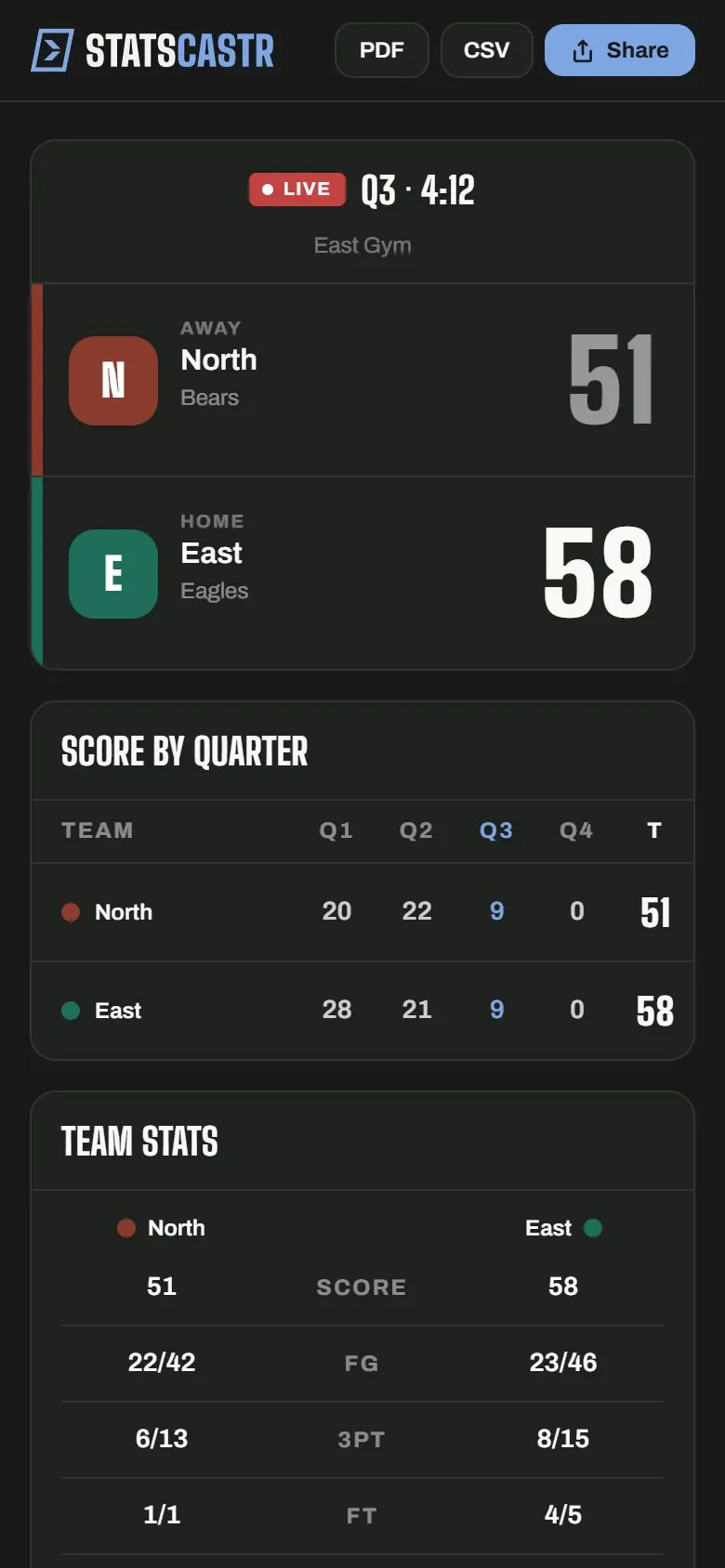
The top bar
- PDF and CSV download the box score. See Download a PDF or CSV box score.
- Share copies the page's link so fans can pass it on. It reads Copied! for a moment.
The scoreboard
- Both teams, labelled Away and Home, with each team's color, logo (or first letter), name, mascot and record. For a season game, the record is the team's record in that season.
- The score.
- The status: Live with the period and clock (for example "Q3 · 4:12"), Final, or Scheduled.
- In tennis, the current game's score, or Deuce.
- The location, if you entered one.
Stats and play-by-play
- Score by the sport's period (for example Score by Quarter, Score by Set or Score by Inning), with a T column for the total. The current period is highlighted during a live game.
- Team stats: both teams side by side.
- Player stats: a tab for each team, using the same stat groups as your game page.
- Play-by-Play: every play you've logged, read-only.
- Rosters: collapsed at first. Fans tap Rosters to see each team's names, numbers and positions. A team with no players shows No roster added yet.
- Season standings: for season games only, with this game's two teams highlighted. This table shows W, L, PCT, points for and against, and STK, but no ties column. See How standings work.
How often it updates
The page refreshes every 15 seconds, during the game and after it. While it's live, the bottom of the page says Stats refresh automatically every 15 seconds.
That means a fan is never more than about 15 seconds behind you. It also means corrections reach fans: fix a play after the final, and the page updates for everyone. Fans don't need to reload.
While the page refreshes, the PDF and CSV buttons briefly read Refreshing… and can't be tapped. Wait a second and try again.
Team logos
The scoreboard shows each team's logo, whether you uploaded it or pasted an image URL. If a logo can't load, fans see the team's first letter instead. See Add a team.
The standings table on the fan page always shows each team's first letter, not its logo.
What fans can't do
- Change anything. The page is read-only.
- See your other games, teams or seasons, except the standings of this game's season.
- Turn on notifications. StatsCastr doesn't send game alerts.
When fans can't open it
- "Game not found": the link is wrong or the game was deleted. Check the number in the link.
- "Game data unavailable": the page couldn't load, often a weak signal at the field. The message says "Please try again in a moment"; reloading usually fixes it.
- Asked to log in: they have your app's /games/ address instead of the /g/ fan link. Send them the fan link.
Checklist
- Fan link opened on your own phone once, to see what parents see
- Team logos added, if you want them on the scoreboard
- Rosters checked, since fans can see names, numbers and positions
- Corrections made after the final, knowing fans see them within 15 seconds