Teams change: a new logo, a corrected name, a different shade of the school color. You can edit a team at any time, and the change shows everywhere the team appears, including games you've already played. You can also delete a team, but only once it has no games.
Short version
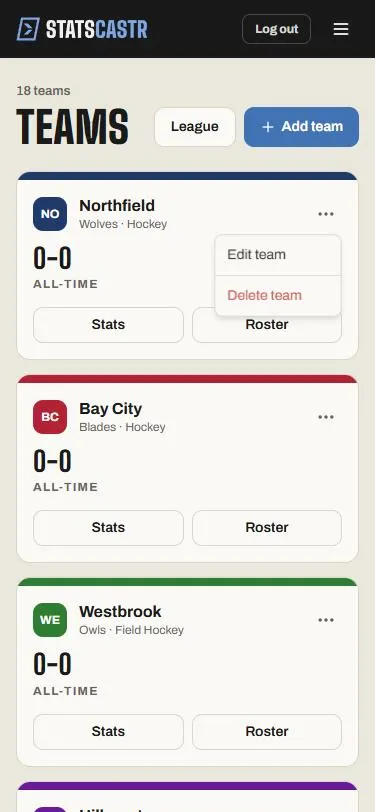
On Teams, tap the … menu on the team's card, then Edit team. Make your changes and tap Save changes. To delete, choose Delete team from the same menu; if the team has played games, delete those games first.
Edit a team
- Tap Teams in the header.
- On the team's card, tap the … menu (the three dots at the top right of the card), then Edit team. You can also tap Edit team on the team's page or on its Roster page.
- Change any field: Team name, Mascot, Sport, Team color, Secondary color or Logo. Add a team explains each one.
- Tap Save changes. You go back to Teams.
To leave without saving, tap Cancel or ‹ Teams.
The edit form also has Manage roster, which opens the team's roster. See Add, edit and remove players.
What changes, and where
- Name, mascot, colors and logo update everywhere at once: team cards, game pages, standings, box scores and the fan page. Past games show the new details too.
- Logo: to replace an uploaded logo, tap Upload logo again, or paste an image URL in Or paste an image URL. Remove clears it. Either kind shows on the public fan page too. See Add a team for the details.
- Starting record (W-L-T): these boxes aren't used, and changes to them aren't saved. Records come from final games.
Changing the sport
Only change a team's sport if you picked the wrong one when you created it. Think twice once it has a roster or games:
- Each sport has its own positions. Players whose position doesn't exist in the new sport move to an Other group on the roster until you give them a new position. See Roster positions for each sport.
- Games already played keep the sport they were created with.
- The team can only join seasons, and new games, of its new sport.
Delete a team
Deleting a team removes it along with its whole roster, and takes it out of every season. It can't be undone.
- Tap Teams.
- On the team's card, tap the … menu, then Delete team.
- Confirm Delete followed by the team's name.
The card disappears once the team is deleted.
If the team has games
A team can't be deleted while any game, scheduled, live or final, still has it as the home or away team. If it does, the team stays and a red message at the top of Teams tells you how many games: "This team is in 3 games. Delete those games first, or keep the team." (or "This team is in 1 game. Delete that game first, or keep the team."). Tap Dismiss to close it.
You have two choices:
- Keep the team. If you just want it out of the way, this is usually best. Its games, stats and the opponents' records stay as they are. You could rename it, for example "Old - River City", so it's easy to tell apart.
- Delete its games first, then the team. On Games, find each game the team played (home or away) and tap Delete on its card, then confirm Delete this game?. When the team has no games left, delete it again from Teams. See Delete a game.
Before you delete games, remember what goes with them: every play and stat in those games, and those results in the season standings, stat leaders and the opponents' records. Download any box scores you want to keep first (Download a PDF or CSV box score).
Opponents you only played once
If an opponent's team clutters your list, keeping it costs nothing. Deleting it means deleting the game you played against it, and your own team's record and stats from that game go too.
If something goes wrong
- Team unavailable: "This team may have been removed, or you may not have access to it." The team was deleted, or you're signed in to a different account. Tap Try again, or Back to teams.
- A red box with "ApiError: HTTP 400" and more text when saving: a field was refused. Check the color hex codes look like
#1F6E5A, and that Team name and Mascot aren't empty. - "This team is in ... games" when deleting: the team still has games. Delete those games first, or keep the team (see If the team has games above).
- The fan page shows the team's initial instead of the logo: the logo image couldn't load. If you pasted an image URL, check the image is still online, or upload the logo instead. See Add a team.
Checklist
- Edits made from the … menu, then Edit team, and saved with Save changes
- Sport changed only to fix a mistake, with roster positions checked afterward
- Before deleting: the team has no games, or you've decided to delete them
- Box scores downloaded for any games you're about to delete