This is the reference for scoring a soccer match in StatsCastr: halves and extra time, possession, every stat button and where each stat ends up. For what StatsCastr does for soccer overall, see the soccer page.
Short version
Pick who kicks off, then tap a team in the Possession bar each time the ball changes hands. For a goal, tap the scoring team, Goal, the scorer (or Unknown Scorer), then the assist (or No Assist). Other stats are team, button, then player or Skip.
Halves and the clock
Soccer has no ruleset to pick. Every match runs two halves, 1H and 2H, with 45:00 on the clock.
- Tap + for the next half. After 2H, + adds ET1 and ET2 for extra time, and stops there.
- The clock doesn't run. Type the time in the box next to the half when you want plays stamped with it. It saves when you leave the box. A time past 45:00 is fine, for stoppage time.
See Change the period and set the clock.
Kickoff and possession
At the start of each half, a card asks Who kicks off 1H? (or 2H, ET1 and so on). Tap the team that kicks off. That starts the possession timer. Skip hides the card for that half without starting it.
The Possession bar then shows a button for each team, with the team in possession highlighted. Each time the ball changes hands, tap the other team. The line above the buttons shows the split for the current half, for example Valley United 45% · 55% Harbor City.
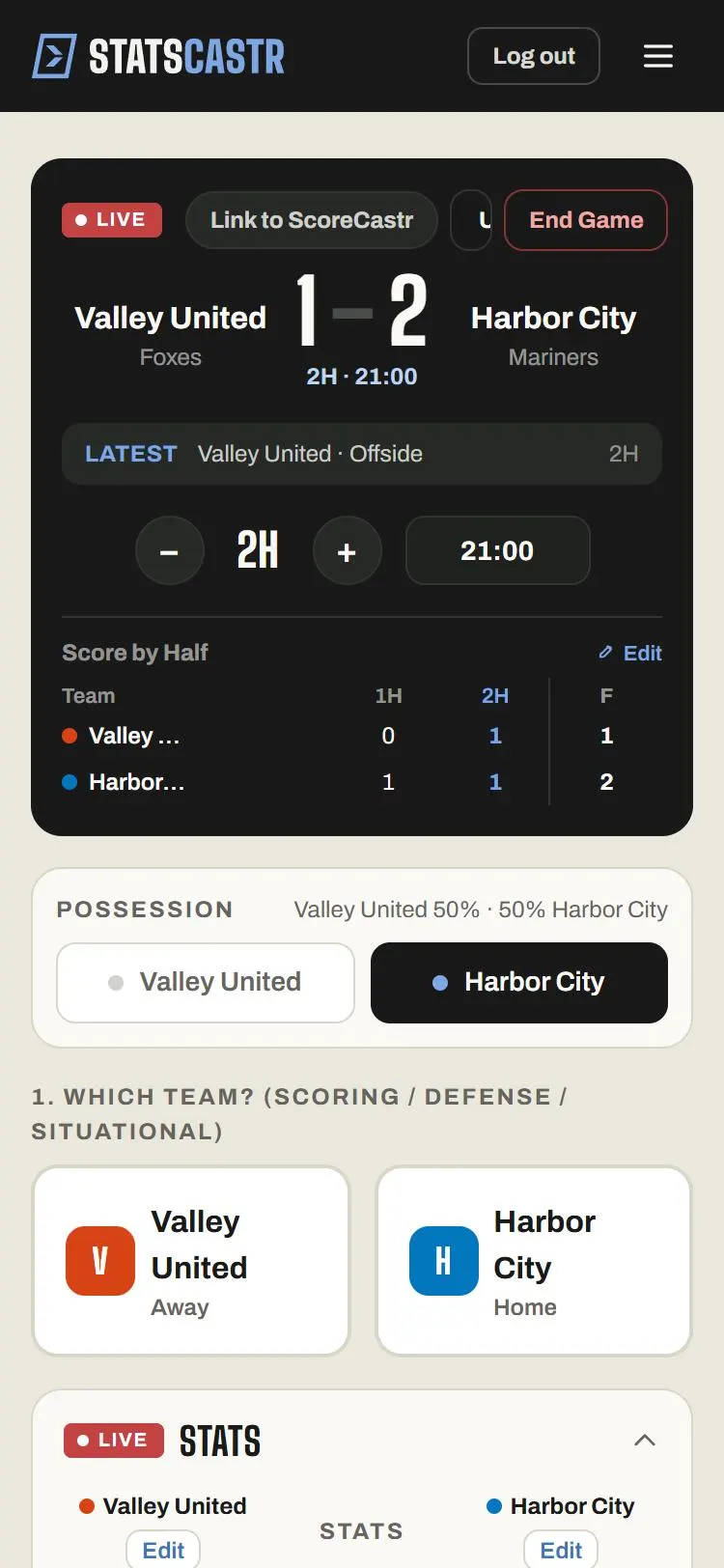
Possession is timed with the real clock, from one tap to the next. It keeps counting through stoppages and halftime for whichever team had the ball last. If the box score's possession looks off at the end, correct it in the team's stats before you tap End Game (see below).
The stat buttons
Tap 1. Which team?, then a button under Quick stats. The team stays picked until you tap the other one.
| Button | Tap this team | Records | Then asks |
|---|---|---|---|
| Goal (+1 pts) | The scoring team | A goal, a shot and a shot on goal | Goal — Who Scored?, then Goal — Who Assisted? |
| Shot on Goal | The shooting team | A shot on target | Shot on Goal — Who Shot? |
| Shot (Off) | The shooting team | A shot off target | Shot — Who Shot? |
| Save | The keeper's team | A save | Save — Which Keeper? |
| Corner | The team taking it | A corner kick | Nothing: it logs at once |
| Foul | The team that fouled | A foul | Foul — Who Fouled? |
| Yellow Card | The player's team | A yellow card | Yellow Card — Who? |
| Red Card | The player's team | A red card | Red Card — Who? |
| Offside | The team caught offside | An offside | Nothing |
In each player panel, tap the player, Skip to log a team stat with no player, or Cancel to log nothing. Save — Which Keeper? lists only players with the GK position. With no keeper on the roster, it says No players found for this position.; tap Skip.
Goals, scorers and assists
- Tap the scoring team, then Goal.
- Under Goal — Who Scored?, tap the scorer, or Unknown Scorer if you didn't see.
- Under Goal — Who Assisted?, tap the player who set it up, or No Assist.
The goal is saved after the assist step. Cancel at either step logs nothing. A goal already counts as a shot and a shot on goal, so don't log a separate shot for it.
A save is two plays if you want both sides: Shot on Goal for the shooting team, and Save for the keeper's team.
Fix team and player totals
Team totals. On LIVE Stats, tap Edit under a team. The form has Shots (Total, On Goal, Saves), Set Pieces & Fouls (Corners, Fouls, Offsides), Discipline (Yellow Cards, Red Cards) and Possession (the team's %). Tap Save Changes.
- Plays you log afterwards still add on top of the numbers you saved.
- Saving also sets possession to the % in the form, and that figure then replaces the timed possession in the box score for the rest of the match (the bar on the Live page keeps timing the current half). Check it before you save. Saving doesn't change the half.
- After the final, the same Edit is on the game's Box score page under Team stats. There, the possession field doesn't save; the other fields do.
- Goals aren't in this form. To change the score, edit or delete the Goal play in the play log.
Player totals. In Player Stats, choose a player from + Add / edit player stats… or tap the pencil next to one. The form has Attacking (Goals, Shots, Assists), Goalkeeper (Saves) and Discipline (Yellow, Red, Fouls). Tap Save. The numbers replace that player's totals from the plays. This works on the Live page and on the Box score page after the final.
See Edit team and player totals (football and soccer). To fix a single play (the wrong scorer, say), use Edit in the play log; see Edit or delete any play, during or after the game. In soccer you can change the players on a play but not the kind of play, and possession entries can't be edited.
What goes in the box score
LIVE Stats and the box score show Score, Goals, Shots / SOG, Saves, Corners, Fouls, Yellow Cards, Red Cards, Offsides and Possession. The PDF and CSV list shots and shots on goal separately, without possession.
Player stats come in three groups: Scoring (GOALS, SHOTS, AST), Goalkeeping (SAVES) and Discipline (YEL, RED, FOULS).
Standings and leaders
Soccer standings show W, L, T, PCT, GF (goals for), GA (goals against) and STK. The season leaders are season totals for Goals, Assists, Shots on Goal and Saves, counted from final games. See How standings work and Season stat leaders for each sport.
Checklist
- At least one player on each roster has the GK position, for saves
- Kickoff picked at the start of each half
- Possession bar tapped every time the ball changes hands
- Every goal logged with a scorer and an assist, or Unknown Scorer and No Assist
- Possession and team totals checked before End Game