The QB and RB panels sit below the quick-stat buttons on a football game's Live page. They log one play at a time for a named player, so the passing, rushing and receiving lines build as the game goes. Use them when you can follow every snap; for totals, see Keep football stats.
Short version
In QB Per-Play Tracking, pick the team tab and the quarterback, tap Complete, choose the yards, tap Next →, then tap the receiver. Rush, Pass TD and Rush TD work the same way. RB Per-Carry Tracking does the same for running backs with Rush, Rush TD and Fumble.
Set up the roster first
The panels choose players by roster position, so set positions before kickoff. See Roster positions for each sport.
| Panel or step | Lists players with position |
|---|---|
| QB picker | QB |
| RB picker | RB or WR |
| Receiver step | WR, RB or TE |
| Defender step (after an INT or fumble) | DL, LB or DB on the other team |
With nobody at a position, the panel says No QBs on roster or No RBs on roster, and plays you log there aren't credited to any player. The receiver step says No receivers (WR/RB/TE) on roster — use "No Receiver" to continue.
The QB panel
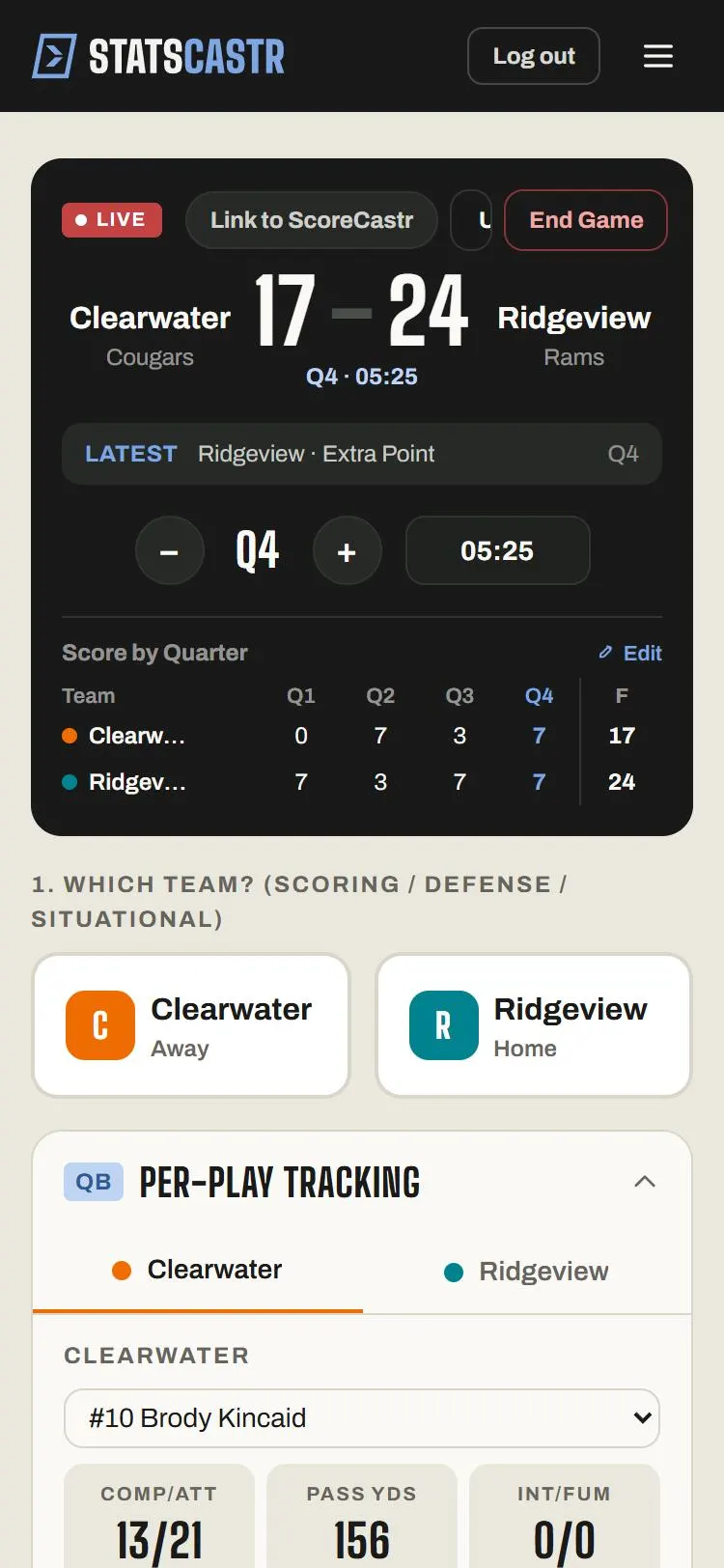
QB Per-Play Tracking is open when the page loads. Tap its header to fold it away.
- Tap the team tab at the top of the panel (away or home).
- Pick the quarterback from the list. The first QB on the roster is picked for you.
- Tap an action:
| Action | Records | Then asks |
|---|---|---|
| Complete | A completion and yards | Yards, then the receiver |
| Incomplete | A pass attempt | Nothing: it logs at once |
| Pass TD (+6 pts) | A touchdown pass, completion and yards | Yards, then the receiver |
| Rush | A QB run and yards | Yards |
| Rush TD (+6 pts) | A QB rushing touchdown | Yards |
| INT | An interception thrown | The defender (optional) |
| Fumble | A fumble | The defender (optional) |
Pass TD and Rush TD add 6 points to the score. Don't also tap TD in the quick stats, or the touchdown counts twice.
Yards and the receiver
The yards step is titled with the action, for example Complete — Yards?. Tap a preset (0, 5, 10, 15, 20, 30 or 40) or type the yards in the box, then:
- for Rush and Rush TD, tap Confirm and the play is logged;
- for Complete and Pass TD, tap Next →. The panel asks Complete · 12 yds — Who caught it? (with your action and yards). Tap the receiver's number, or No Receiver.
Cancel at either step logs nothing.
Interceptions and fumbles
INT and Fumble are logged against the quarterback straight away. A second step then appears for the other team, titled for example Ridgeview Defense — Interception:
- Under Who intercepted it? (or Who recovered the fumble?), tap the defender.
- Set Return Yards (0 to 50 presets, or type it).
- If it went back for a score, tap Returned for TD?. It changes to ✓ Returned for TD (+6 pts), and the other team gets the 6 points.
- Tap Log Interception or Log Fumble Recovery.
Skip closes this step and logs nothing for the defense. The interception or fumble against the offense stays logged. To credit the defense without naming a player, tap Log Interception (or Log Fumble Recovery) without picking anyone.
The QB's numbers
Once a quarterback is picked, six boxes show their game so far: COMP/ATT, PASS YDS, INT/FUM, RUSH ATT, RUSH YDS and TDs R/P (rushing and passing touchdowns).
The RB panel
RB Per-Carry Tracking works the same way for ball carriers.
- Tap the team tab, then pick the player.
- Tap Rush or Rush TD (+6 pts), choose the yards (presets 0, 1, 2, 3, 5, 8, 10, 15 and 20), and tap Confirm.
- Tap Fumble for a fumble. It's logged at once, then the other team's Who recovered the fumble? step appears, as for the quarterback.
The boxes show RUSH ATT, RUSH YDS, RUSH TDs and FUMBLES.
Correct a player's line
There are two ways to fix a quarterback's or running back's numbers.
Fix the play (best). In the play log, tap Edit on the play. A completion lets you change the Quarterback, Receiver and Yards; a carry, the Ball carrier and Yards. The kind of play can't change: to turn a Rush into a Complete, delete it and log it again. Every total recalculates. See Edit or delete any play, during or after the game.
Edit the totals. Tap Edit QB Stats or Edit RB Stats in the panel, or the pencil next to a player in Player Stats (under Quarterbacks, Running Backs, Receivers or Defense). Type the numbers and tap Save.
- The numbers you save replace that player's totals for the rest of the game. Plays you log for them afterwards won't change them, so make these edits at the end of the game, before End Game.
- They're on the Live page only. Once the game is final, fix the plays instead.
- Quarterback edits show everywhere: the box score, the fan page, the downloads and the season leaders.
- Running back edits show on the Live page and the game's Box score page, but not on the fan page, in the PDF and CSV, or in ScoreCastr's graphics.
- Receiver and defense edits show only on the Live page.
To change a running back's, receiver's or defender's numbers everywhere, fix the plays.
Things to watch for
- A player missing from a picker usually has the wrong roster position, or none.
- Only one play saves at a time. If you tap too fast you'll see Saving previous stat; wait a moment and tap again.
- The Passing and Rushing quick stats log totals in one go. Use them or these panels for a player, not both.
Checklist
- QBs, RBs, receivers and defenders have the right roster positions
- Right team tab and player picked before each play
- Touchdowns logged once, with Pass TD or Rush TD
- Defender credited on interceptions and fumbles, or Skip
- Any QB or RB total edits made before End Game