The Games page lists every game in your account, from next week's schedule to last season's finals. Each card shows the score and status and gives you the buttons that make sense for that game right now.
Short version
Tap Games in the header. Use All, Scheduled, Live or Final to filter. Scheduled games have Start Game and Edit, live games have Track Stats and End Game, and finals have View.
Open the list
Tap Games in the header (on a phone, it's in the three-line menu). The dashboard's All games → links open it too: from Up next it opens on Scheduled, and from Recent finals on Final.
The newest games you created are at the top. Games aren't sorted by game date, so a game you scheduled early for late in the season sits further down than one you added yesterday.
Filter by status
The tabs under the heading narrow the list:
- All: every game
- Scheduled: games that haven't started
- Live: games in progress
- Final: finished games
The filter is part of the page's address, so you can bookmark Live and land straight on your games in progress. If a tab has nothing in it, you'll see No games and "No games with this status."
There's no search box. With a long list, the status filters are the quickest way in.
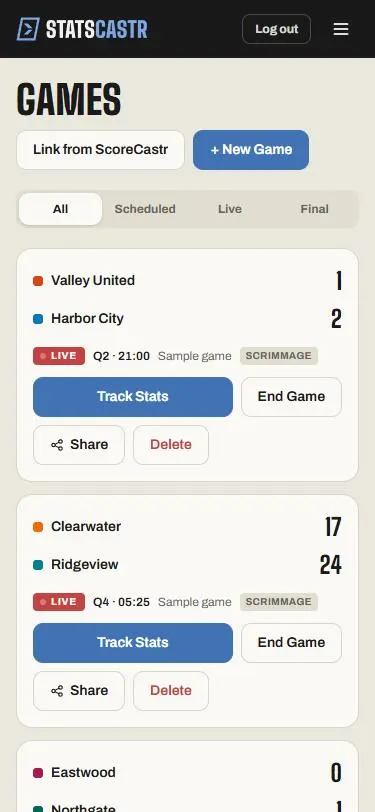
Read a game card
Each card shows:
- both teams, away on top and home below, with their colors
- the score, once the game has started (the losing team is greyed out in a final)
- the status: the date and time for a scheduled game, a Live badge, or a Final plate
- the location, and a Scrimmage tag if the game isn't in a season
A scheduled game with no date set shows Scheduled instead of a date.
Live games also show the period and game clock. On the Games list, the period is always labelled Q (for example Q2 · 4:31) whatever the sport, so a volleyball match in its second set shows Q2 there. The game's own page, the Live page and the dashboard show the right label for your sport, such as a half, set, period or inning.
The buttons on each card
| Game status | Buttons |
|---|---|
| Scheduled | Start Game, Edit, Delete |
| Live | Track Stats, End Game, Share, Delete |
| Final | View, Share, Delete |
- Start Game makes the game live straight away, with no confirmation.
- End Game marks it final straight away, with no confirmation. To get a confirmation step, end the game from the Live page instead. See Start a game and end it.
- Share opens your phone's share menu, or copies the fan link and briefly reads Copied!. If copying fails, you'll see "We couldn't copy the link. Copy it from your browser address bar and send it to your team." The address bar shows your own /games/ address, which fans can't open, so send statscastr.co/g/ followed by the game's number instead. See Share the live game link.
- Delete asks "Delete this game?" first. See Delete a game.
A scheduled game's card has no button for its game page. To open it (for example to link it to ScoreCastr before the start), tap it under Up next on the dashboard (which shows the five scheduled games you created most recently), or in the schedule on either team's page.
Other ways in
- The dashboard's live game cards and Up next are quicker on game day. See A tour of the dashboard.
- A season's page shows its five most recent games.
- A team's page lists its schedule. See Your team page.
When the list is empty
No games with "Create your first game to get started." means you haven't scheduled anything yet. Tap + New Game. See Schedule a game.
Checklist
- Games opened from the header or the dashboard
- Filter set to Scheduled, Live or Final to narrow the list
- Live period read on the game's page if your sport isn't quarters
- End Game used from the Live page when you want a confirmation